
Google Analytics 4 replaced Universal Analytics in 2023. The interface is different, the metric definitions changed in ways that catch people out, and the setup is more involved than the old version. The bright side is that once it is set up properly, GA4 gives you better data for understanding actual user behaviour, particularly for the conversion analysis that ties traffic to business outcomes. See how to set up conversion tracking in GA4. It also underpins A/B testing. The slow side is that getting through the setup without missing a step requires more attention than the old version did.
This is the operational walkthrough for setting up GA4 on a business website. It assumes you have admin access to the site (or a CMS plugin that handles the tag install for you) and a Google account that you want to associate with the analytics property. It does not cover advanced configurations like e-commerce tracking or custom event setup; those have their own posts. Conversion event configuration in particular gets enough attention to deserve a separate guide, unpacked in the upcoming GA4 conversions post.
Before you start: the data flow
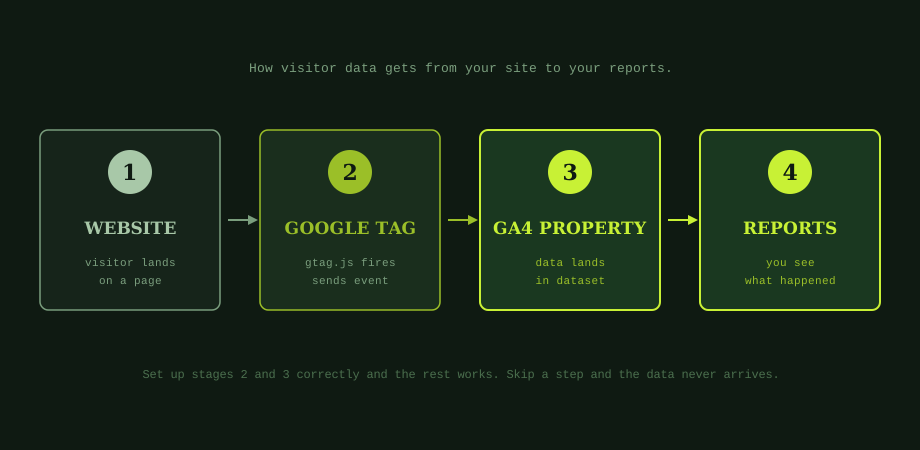
Understanding what the four pieces do makes the setup easier. A visitor lands on a page; the Google Tag (gtag.js, installed in the page head) fires and sends an event to Google; Google routes the event into your GA4 property; the data appears in your reports. If any step in this chain breaks, the data does not arrive and the reports stay empty. Most "GA4 is not working" issues are one of these four steps being wrong rather than something deeper.
The setup work is largely about putting the right configuration in place at each step. The actual data collection happens automatically once the chain is configured correctly.
Step 1: create the GA4 property
Go to analytics.google.com and sign in with the Google account you want to own the property. If you have an existing Universal Analytics property, GA4 will be a separate property; do not assume the data from the old one migrates. Click Admin (gear icon at the bottom left), then Create > Property. Enter a property name (your business name is a sensible default), set the reporting time zone to your business location (this affects how dates are calculated in reports; getting it wrong here means every report is off by a few hours forever), and choose your currency.
On the next screen, set the industry category and business size. These choices affect what default reports GA4 emphasises, but they do not affect data collection; you can change them later if needed. The business objectives screen that follows lets you tell GA4 what you care about (generate leads, drive online sales, etc.); pick whichever fits. This affects the default reports shown but again does not change underlying data collection.
Click Create. The property is now created. The next screen prompts you to add a data stream, which is the next step.
Step 2: add a web data stream
A data stream is GA4's term for one source of data, in this case your website. Click Web on the data stream selection screen. Enter your website URL (the canonical version: https://www.yoursite.com or https://yoursite.com depending on which is your preferred form). Give the stream a name (your domain name works fine).
Enhanced measurement should stay on for most business sites. It automatically tracks pageviews, scrolls, outbound clicks, site search, file downloads, and form interactions without additional configuration. Some of these auto-tracked events are useful, some are noise; you can fine-tune later by clicking the gear icon next to Enhanced measurement and disabling specific event types. For most businesses, the defaults are fine to start.
Click Create stream. GA4 now generates a Measurement ID (it looks like G-XXXXXXXXXX). Note this ID, you will need it in the next step.
Step 3: install the Google tag
This is where most setups break. The Google tag (gtag.js) needs to be installed on every page of your site, ideally in the head section so it loads early in the page lifecycle. The exact installation method depends on your platform.
WordPress: the easiest path is a dedicated GA4 plugin (Site Kit by Google or one of the analytics plugins) that you authenticate against your Google account. The plugin handles the tag install automatically. Alternatively, if you have a theme that includes a "Custom Header Code" or "Insert Code in Head" option, paste the tag snippet there.
Shopify: Shopify has native GA4 integration in Online Store > Preferences > Google Analytics. Paste your Measurement ID and the tag is installed automatically.
Squarespace, Wix, Webflow: all have built-in integrations in their settings panels. Find Analytics or Tracking in the site settings and paste the Measurement ID.
Custom-built site: paste the full tag snippet (available from GA4's data stream page under "Install with Google Tag Manager" or "Install manually") into the <head> of every page. For a typical setup, this is done by editing the site's header template once, not by editing every page individually. The snippet looks like the script tag at the top of every page on this blog: a small JavaScript loader followed by a configuration call.
Where your site uses Google Tag Manager (GTM), the install path is different: create a GA4 Configuration tag inside GTM with your Measurement ID, set it to trigger on All Pages, and publish the container. The tag is now installed on every page that includes the GTM snippet.
Step 4: verify the install
This is the step most setups skip and most fail at. Open GA4 in one browser, navigate to Reports > Realtime. Open your website in a different browser, or in incognito mode, or on your phone (anything that is not the same browser session you have GA4 open in). Load any page on the site.
Within 30 seconds, you should see at least one active user appear in the Realtime report, and the page you loaded should appear in the "Views by Page title and screen class" list. If you see data, the install is working. If you see nothing after 60 seconds, the tag is not firing or not reporting to this property.
Common causes of an empty Realtime report: the tag was installed with the wrong Measurement ID (double-check it matches the data stream you are looking at), the tag was placed in the body instead of the head (some platforms put it in the footer; this usually still works but can fail on fast-bouncing visitors), an ad blocker is preventing the tag from firing in your test browser, or a Content Security Policy on your site is blocking the gtag script. For each, the fix is specific: re-paste the correct ID, move the tag to the head, test in a browser without ad blockers, or update the CSP to allow Google Analytics domains.
Step 5: filter out internal traffic
Without this step, every time you visit your own site, the visit is recorded as a real user. For a small business with a handful of staff and a public site, this can mean 20 to 40% of your apparent traffic is actually you and your team checking the site. The filtering is straightforward but slightly fiddly.
In Admin > Data Streams, click your web data stream, then Configure tag settings. Scroll to Show all and click Define internal traffic. Click Create. Give the rule a name ("Internal traffic"), set the traffic_type value to internal, then add IP address matches for your office network and any other locations you want to exclude.
For a single office, the IP address is whatever shows in any "what is my IP" search from a machine on that network. Match type "IP address equals" with your office IP. If your office has multiple IPs or a dynamic IP, you may need to use range matching or revisit this configuration periodically.
The rule by itself does not yet filter the data; it just labels matching traffic as internal. Go back to the property level, then Data Settings > Data Filters, find the Internal Traffic filter (it exists by default in Testing mode), and switch it to Active. Internal traffic is now excluded from reports.
Step 6: link Google Search Console
Search Console gives GA4 the queries users searched to find your site, which is information GA4 does not collect on its own. The link is worth setting up for any site that gets meaningful organic traffic.
In GA4 Admin, scroll to Search Console under Product Links. Click Link, then choose the Search Console property that matches your site (this requires you to have admin access to both the GA4 property and the Search Console property). Select the GA4 web stream to link to, then confirm. The link takes effect immediately, but the new "Queries" report in GA4 only shows data going forward, not historical.
With not yet set up Google Search Console for your site, that is a separate exercise; the broader SEO audit checklist covers the GSC setup. For analytics purposes, the link is optional but useful.
The setup as a 6-step checklist
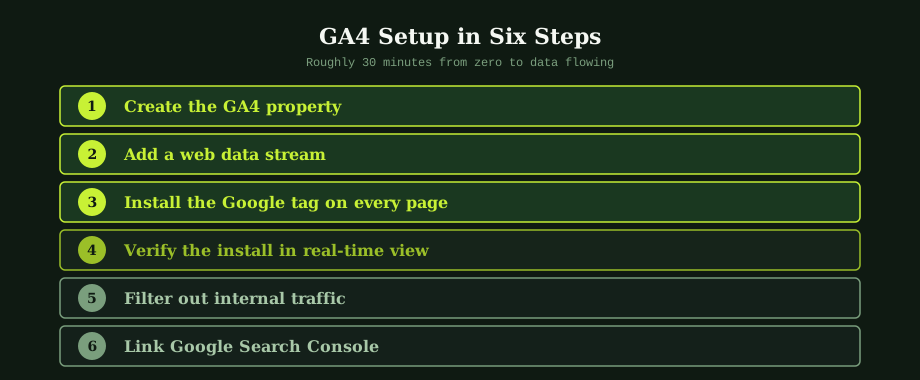
The order matters because each step depends on the previous one. Property must exist before you can add a data stream; data stream must exist before you have a Measurement ID; the tag must be installed before verification can succeed; the install must work before internal traffic filtering makes sense.
The most common setup mistakes and how to spot them
Several patterns recur across business sites with broken or partially broken GA4 setups. Each has a specific fix once you recognise it.
Tag installed but not firing on every page. Symptom: Realtime works on the homepage but not on inner pages. Cause: the tag was added to a page-specific template instead of the site-wide header. Fix: locate the global header template and move the tag there.
Two GA4 properties accidentally created. Symptom: traffic splits across two properties, neither showing complete data. Cause: someone created a new property thinking the existing one was broken, leaving both active. Fix: identify which Measurement ID is in the installed tag, delete the unused property (or stop sending data to it).
Internal traffic filter never activated. Symptom: GA4 shows traffic that looks too high for the actual site activity. Cause: the internal traffic rule was created but never switched from Testing to Active. Fix: Admin > Data Settings > Data Filters, set the Internal Traffic filter to Active.
Wrong time zone set on the property. Symptom: traffic spikes appear at strange hours; daily reports start and end at the wrong points. Cause: the time zone was left at the GA4 default rather than set to your business location. Fix: Admin > Property Details, change Reporting time zone. Future data uses the new zone; past data does not adjust retroactively.
Currency set to USD by default. Symptom: e-commerce revenue shows in dollars when the business operates in baht. Cause: same as above, the default was not changed. Fix: Admin > Property Details, change Currency displayed. For Thai businesses, set to THB. Note that e-commerce events will still report in whatever currency your site sends; the GA4 currency setting affects display only.
What to do once it is collecting data
The base install gets you pageview and engagement data, which is useful but not particularly actionable on its own. The next layer of work is conversion event configuration: telling GA4 which specific user actions count as business outcomes (form submission, phone click, e-commerce purchase, signup) so that the data ties back to the business questions you actually want to answer. That work has its own post.
Before that, give the install a week of real data. Check that Realtime is consistently showing visits, look at the Acquisition reports to verify that traffic sources are being attributed correctly (organic vs direct vs referral vs paid), and check that the Engagement reports show reasonable page-level numbers. If anything looks off in this first week, fix it before adding conversion events on top.
The conversion event setup is the work that ties GA4 to the conversion rate optimisation question a deeper look in the related post: without conversion tracking configured properly, GA4 cannot tell you which traffic actually produces business value. The default install captures pageviews, which is the wrong metric for almost every business decision.
For businesses that want help setting up GA4 alongside the broader SEO and conversion programme, our CRO service handles analytics setup as part of the engagement. An experienced SEO agency can also audit an existing GA4 installation and identify the specific configuration gaps that are skewing your data.
Common questions
How long does it take to set up Google Analytics 4?
For a single website with no complications, the core setup takes 30 to 45 minutes: creating the GA4 property, configuring the data stream, installing the Google tag in the site head, verifying that data is flowing, filtering out internal traffic, and linking Google Search Console. Adding conversion event tracking on top of that adds another 30 to 60 minutes depending on how many actions you want to track. For sites with consent management, multiple subdomains, e-commerce tracking, or custom event tracking requirements, the setup can take a day or more, primarily because of testing and verification rather than the actual configuration work.
Do I need a developer to install Google Analytics 4?
For most business websites, no. Modern site builders (WordPress, Shopify, Wix, Squarespace) all have plugins or settings that accept your GA4 measurement ID and install the tag correctly without code changes. For custom-built sites or sites with complex requirements (subdomains, e-commerce tracking, custom event definitions), a developer may be needed for parts of the installation. The basic install, however, is something most business owners or marketing staff can complete themselves following the standard documentation.
What is the difference between Universal Analytics and GA4?
Universal Analytics (the previous version) was session-based and built around pageviews, with goals configured to mark specific URL visits or events as conversions. GA4 is event-based, meaning everything in GA4 is an event (pageviews, scrolls, clicks, conversions, e-commerce actions, all the same data type), with conversions defined as specific events marked as conversion events. The interface is different, the reports are organised differently, and the metric definitions changed in ways that affect comparisons across versions (most notably, GA4 reports engagement rate where UA reported bounce rate). Universal Analytics stopped processing data in July 2023; GA4 is the only Google Analytics product currently being developed.
How do I know if Google Analytics 4 is installed correctly?
The fastest verification is to visit your website in a different browser or incognito window and check the Realtime report in GA4 (Reports menu, Realtime). You should see at least one active user (yourself) and one page view within 30 seconds of loading the page. If you see no data, the tag is not firing. Common causes: the tag was added but to the wrong measurement ID, the tag was placed in the body instead of the head, a content security policy is blocking the gtag script, or an ad blocker on your test browser is preventing the request.