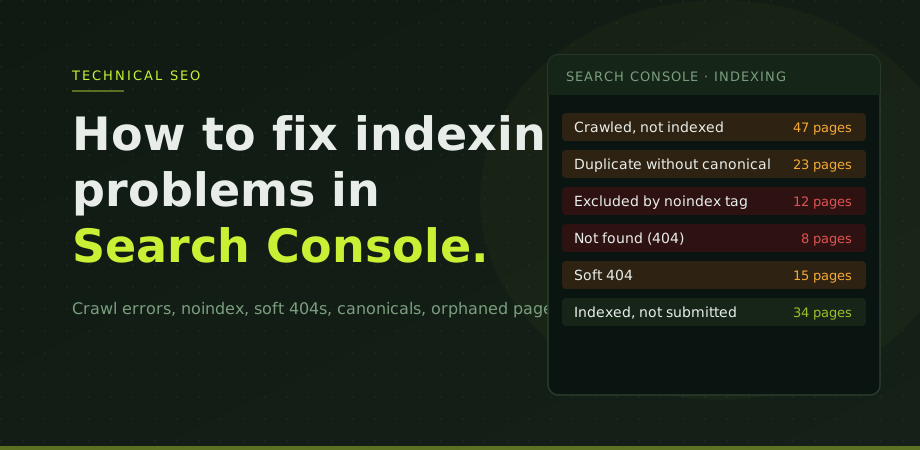
Indexing is the foundation of everything in SEO. It does not matter how well-optimised a page is, how many links point to it, or how good the content is if Google has not indexed it. An unindexed page simply does not exist in search results.
Google Search Console's Pages report (formerly Coverage) is the most direct tool for finding and diagnosing indexing problems. It groups your pages into indexed and not indexed categories, and within the not-indexed group it breaks down every excluded page by reason. Each reason code maps to a specific technical problem with a specific fix.
This guide covers the errors that appear most often on real sites and what to do about each one. If you are not yet sure whether the problem is discovery, indexation or ranking, start with why a website is not showing on Google. If you want a broader checklist of technical issues to review alongside indexing, the SEO audit checklist covers the full range of factors worth checking before investing further in SEO.
Where to find indexing errors in GSC
In Google Search Console, go to Indexing in the left menu and select Pages. The report shows a graph of indexed pages over time and, below it, a breakdown of pages that are not indexed, grouped by reason. Click any reason to see the specific URLs affected.
The key habit is to look at this report regularly, not only when something seems wrong. Indexing problems accumulate silently. A site migration, a CMS update, or a plugin change can introduce a site-wide noindex tag or break canonicals across hundreds of pages without triggering any visible alerts. If you are moving the site, see how to migrate without losing SEO. By the time it shows up as a traffic drop, weeks of crawl budget may have been wasted. If the issue turns out to be an algorithm update rather than indexing, the recovery workflow is in how to recover from a Google algorithm update. For sites large enough that crawl-budget waste becomes the bottleneck, the deeper view is in crawl budget for SEO. For pages that fail to index because of JS rendering specifically, the deeper view sits in JavaScript SEO: when Google can't read your site.
Start with the errors that affect the most pages and the most commercially important URLs. A noindex on your homepage matters more than a soft 404 on a blog post from three years ago.
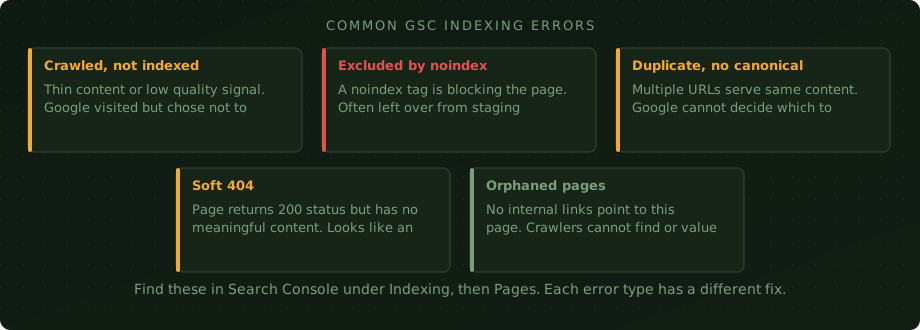
Crawled, currently not indexed
This is the most commonly misunderstood status in GSC. It means Google found the page, crawled it, and made a deliberate decision not to index it. This is not a technical error. It is a quality judgement.
The most common causes are thin content (a page with very little original text), near-duplicate content (a page so similar to others on the site that Google cannot justify a separate entry), or a page with no clear topical focus. Product pages with only a manufacturer description and no original copy fall into this category frequently.
The fix is content improvement, not a technical change. The page needs to offer something that Google considers worth indexing: original content, useful information that is not available elsewhere on the site, or a clear and distinct purpose. Adding internal links from stronger pages on the site also helps by signalling that this page is valued.
One thing to check first: make sure the page is not accidentally blocking crawling via robots. See also robots.txt and canonical tags, which goes deeper on the two files most often misused.txt. A page that cannot be crawled at all sometimes shows up in this bucket if Googlebot has cached an old version.
Excluded by noindex tag
This one is straightforward but can be catastrophic if it affects the wrong pages. A noindex directive in the page's meta robots tag or X-Robots-Tag HTTP header tells Google explicitly not to include the page in its index.
It belongs on pages you genuinely want excluded: thank-you pages, internal search results, admin areas, staging environments. The problem is when it ends up on pages it should not be on.
The most common cause I see on client sites is a staging or development environment that had noindex set globally, and when the site went live the noindex tag was not removed. Sometimes it is a single checkbox in a WordPress SEO plugin. Sometimes it is a header set at the server level that carries over. Either way, the result is the same: Google cannot index any of those pages.
To diagnose: click through to the affected URLs in GSC, then use the URL Inspection tool on a specific page. It will show you exactly what robots directive Google found when it last crawled that page. You can also check by viewing the page source and searching for "noindex" in the head section, or using a browser extension to check response headers.
The fix is simply removing the noindex directive. Once removed, use URL Inspection to request indexing for the most important pages, then monitor the Pages report over the following two weeks.
Duplicate without user-selected canonical
Google found multiple URLs that serve the same or very similar content, and you have not told it which one is the correct version to index. Google has to guess, and it frequently guesses wrong.
This happens most often when a site has URLs accessible via both www and non-www versions, when HTTP and HTTPS both serve content, when URL parameters create variations of the same page, or when e-commerce filter pages generate hundreds of near-identical URLs.
The fix is adding a canonical tag to every page. The canonical tag goes in the head section and points to the URL you want Google to treat as the primary version. Every page should have a self-referencing canonical as a baseline. Duplicate or variant pages should point their canonical to the main version.
Getting canonicals right site-wide is part of what our technical SEO service covers. Canonical errors are among the most common issues we find on sites that have grown organically over several years without a consistent technical strategy.
Soft 404 errors
A soft 404 is a page that returns HTTP status 200 (success) but contains no meaningful content. Google's systems are good at recognising pages that are functionally empty even when the server says they are fine.
Common examples: a product page for an out-of-stock item that has been cleared and now shows only a brief "not available" message, a search results page that finds no results and renders an empty template, or a location page for a city the business no longer serves that now shows placeholder text.
There are two valid fixes depending on the situation. If the page should exist and have content, add meaningful content and the soft 404 status will resolve. If the page genuinely has no purpose, redirect it with a 301 to a relevant page, or return a proper 404 or 410 status so Google stops wasting crawl budget on it.
For e-commerce sites specifically, soft 404s are often the largest single category of excluded pages. Seasonally discontinued products, category pages for sold-out lines, and filtered navigation pages all contribute. The SEO for e-commerce side of technical SEO often starts by cleaning up this layer before anything else.
Orphaned pages and discovered, not crawled
Orphaned pages are pages that exist on the site but have no internal links pointing to them. Googlebot discovers pages primarily by following links. If nothing on your site links to a page, Googlebot either never finds it or deprioritises it when it does.
Discovered, currently not crawled is the GSC status for pages Google knows about (usually because they appear in a sitemap) but has not yet gotten around to crawling. See XML sitemaps explained. On large sites with limited crawl budget, this can mean hundreds of pages waiting indefinitely. The fix is internal linking: build links from relevant, well-indexed pages to the orphaned ones. This signals their importance and puts them in the crawl path.
Building a deliberate internal linking structure matters beyond fixing this specific error. A well-linked site distributes authority more efficiently, helps Google understand which pages are most important, and creates clear topical connections between related content. This is worth treating as an ongoing practice rather than a one-time fix.
How to work through errors systematically
The most important thing is to prioritise by commercial impact, not by volume. A site might have 300 duplicate canonical errors on blog tags and 5 noindex errors on service pages. The 5 service page errors need to be fixed first.
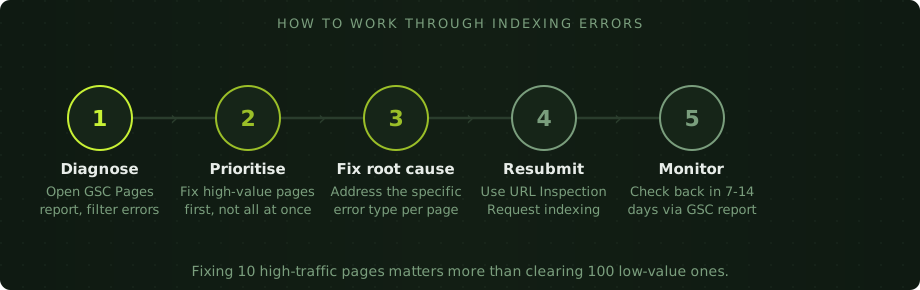
Go to the Pages report, filter by each error type, and export the URL list. Cross-reference it against your analytics to find which excluded pages were getting traffic before the problem started, or which ones represent key commercial pages. Fix those first.
After fixing each batch, use URL Inspection to request re-crawling of the most important pages. Do not use it for hundreds of URLs at once; it is designed for targeted use on specific pages. For bulk re-indexing, submitting an updated sitemap and waiting for the regular crawl cycle is more appropriate.
Check back after 10 to 14 days. If the error count for a specific type is dropping, the fix is working. If it is not moving, something in the fix was incomplete or a second issue is preventing indexing.
For sites where indexing issues are widespread or recurring, a proper technical SEO review is usually the fastest route to resolution. We cover indexing, crawl configuration, and the full technical stack as part of the digital consultancy service for businesses that want to understand the full picture before committing to ongoing work.
GSC indexing questions
Why are my pages showing as crawled but not indexed?
This means Google visited the page and decided not to index it. Usually the content is too thin, too similar to other pages on the site, or lacks a clear purpose that justifies a separate listing. The fix is content improvement, not a technical change. Adding internal links from stronger pages also helps signal the page's value.
How long does it take for a page to be indexed after fixing an error?
After fixing the issue and requesting indexing via URL Inspection, most pages are reviewed within a few days to two weeks. High-authority pages on active sites tend to be re-crawled faster. Requesting indexing does not guarantee inclusion, but it signals to Google the page is ready for review.
Can a noindex tag on one page affect the rest of the site?
Not directly. A noindex directive only affects the specific page it is on. The risk is a global noindex being set at the server or CMS level, which blocks all pages simultaneously. This is most common when staging environments go live without removing a site-wide noindex header or settings flag.
What is a soft 404 and how do I fix it?
A soft 404 is a page returning HTTP 200 status but with little or no meaningful content. Google recognises it as functionally empty. The fix is either adding proper content to make the page useful, or redirecting the URL to a relevant page and returning a real 404 or 410 status so crawl budget is not wasted.
If Search Console keeps reporting the same exclusions after you have worked through these fixes, the cause is usually structural. An SEO audit traces it back to the template or rule generating the problem.