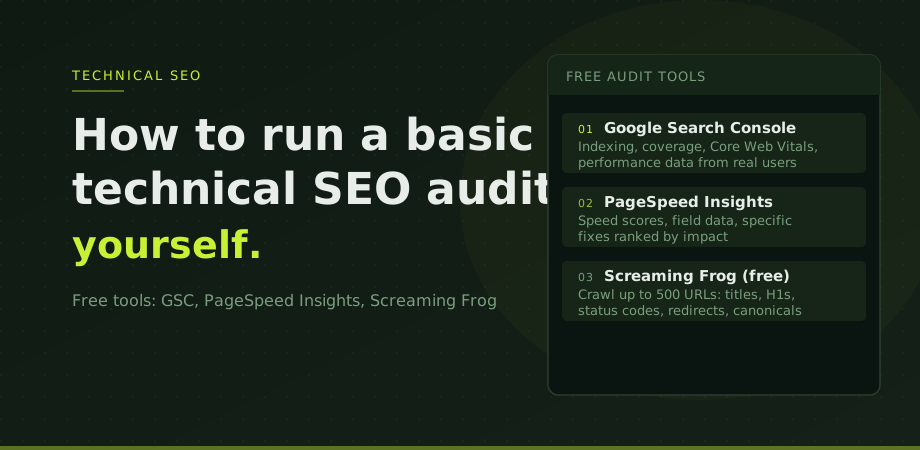
A technical SEO audit sounds intimidating but the core version of it is a structured inspection using tools that are free and accessible without any technical background. The goal is not to produce a 200-page report. It is to find the handful of issues that are actually limiting your site's ability to rank and get indexed correctly.
Most business sites have between three and eight significant technical problems. The audit process is about finding them efficiently, understanding which ones matter most, and creating an action list in the right priority order. This is also a useful starting point before engaging an SEO specialist: understanding your own site's state puts you in a much stronger position to evaluate any recommendations you receive.
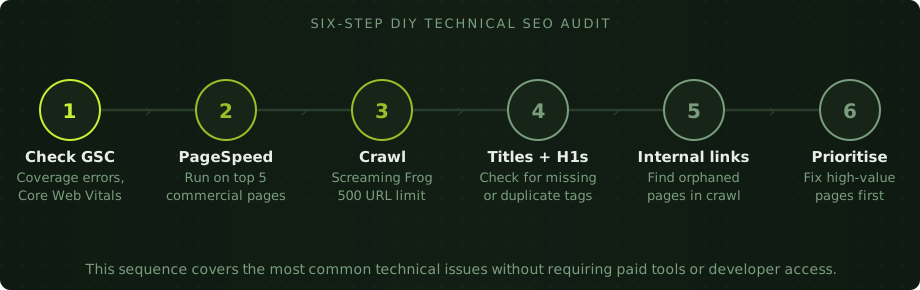
Step 1: Start with Google Search Console
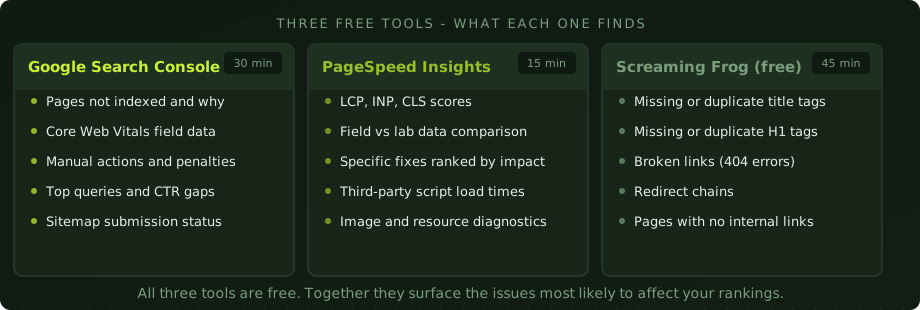
Google Search Console is the most important tool in this process because it shows real data from Google's own systems about how your site is performing. If you have not set it up yet, that is the first task: go to search.google.com/search-console and add your property. Verification takes a few minutes.
Once inside, start with the Indexing section in the left menu and click Pages. This shows you how many of your pages are indexed and, critically, how many are not and why. Work through the not-indexed categories one by one. The most common issues to look for are the breakdown is in the guide to fixing GSC indexing errors, but the key things to check at this stage are: any noindex tags blocking pages that should be visible, significant numbers of pages in the Crawled but not indexed bucket (usually a content quality signal), and redirect errors.
Next, check the Experience section and open the Core Web Vitals report. This shows how your pages are performing on LCP, INP, and CLS for real users. Pages scored Poor need attention before most other fixes. Note which page types are affected; often it is a specific template rather than individual pages.
Finally, check the Performance report. Look at your top queries: are the pages ranking for them the pages you would want ranking? Are there queries with high impressions but very low click-through rates, suggesting the title or meta description is not compelling enough? These are not technical issues exactly, but they are fast wins that the audit process should surface. For the specific case where an algorithm update is responsible, the recovery sequence lives in how to recover from a Google algorithm update.
Step 2: Run PageSpeed Insights
Go to pagespeed.web.dev and run your five most important commercial pages through the tool. Your homepage, your main service or product pages, and your highest-traffic blog post if applicable.
Look at the field data section first, not the lab score. Field data shows what real users are experiencing. If the field data is not available (this happens on lower-traffic pages), the lab score is a reasonable proxy but treat it as directional rather than definitive.
For each page, note the LCP time, whether there are any CLS issues, and the specific recommendations the tool surfaces. Focus on the recommendations listed under Opportunities rather than Diagnostics; Opportunities have a directly quantified time saving attached. If image issues dominate the list, that is your primary fix. If TTFB is high across all pages, hosting or a CDN is the priority. The full breakdown of what moves page speed scores is explored in the page speed guide.
Step 3: Crawl with Screaming Frog
Download Screaming Frog from screamingfrog.co.uk. The free version crawls up to 500 URLs, which covers most small and medium business sites in full. See URL structure for SEO. Enter your domain and let it run.
When the crawl finishes, work through these specific checks in the tool:
In the Response Codes tab, filter for 4xx errors. These are pages returning a 404 not found. Check whether any of these are linked from other pages on your site; if they are, those links need to be updated or the 404 needs to be redirected to a relevant page.
In the Page Titles tab, filter for Missing and Duplicate. Missing titles mean pages with no title tag at all, which is a fundamental on-page issue. Duplicate titles mean multiple pages sharing the same title, which creates confusion for search engines about which page is the canonical source for a topic. See also robots.txt and canonical tags, which goes deeper on the two files most often misused.
In the H1 tab, do the same check for missing and duplicate H1 headings. Each page should have exactly one H1 that clearly describes what the page is about. Multiple H1s or a missing H1 are common issues on older WordPress sites.
In the Canonicals tab, look for pages with no canonical tag, or pages where the canonical points to a different URL. Self-referencing canonicals are the baseline standard: every page should point its canonical to itself unless it is deliberately consolidating duplicate content.
Step 4: Check titles, H1s, and focus
With the Screaming Frog data in front of you, go beyond the missing and duplicate checks. Export the full list of page titles and review them manually for the pages that matter most. Ask: does this title clearly describe what the page is about? Does it include the keyword that page is trying to rank for? Is it an appropriate length (roughly 50 to 60 characters for full display in search results)?
A title like "Home" or "Products" or a page title that is just the business name tells Google nothing about the page's topic. These are common on sites built from templates where the title was never properly set. They are straightforward to fix and often produce visible ranking improvements quickly.
For H1s, the standard is one per page, at the top of the content, containing the primary keyword for that page. It does not have to be identical to the title tag but it should be clearly aligned with it. If a page's title says "SEO Services Bangkok" and the H1 says "Welcome to Our Website", that disconnect weakens the page's topical signal.
Step 5: Find orphaned pages
An orphaned page is a page with no internal links pointing to it from the rest of the site. Googlebot finds pages primarily by following links. A page that nothing links to may never be crawled, and even if it is found via a sitemap, the lack of internal links signals to Google that it is low priority. See XML sitemaps explained.
In Screaming Frog, the Inlinks column in the main crawl view shows how many internal links point to each page. Sort by this column ascending to find pages with zero or one inbound internal links. Cross-reference these against your most important commercial pages. Any important page with few internal links pointing to it is losing authority it should be receiving.
The fix is adding relevant internal links from related pages. This is not about stuffing links into content artificially. It is about making sure the site's navigation and content naturally connects pages that should be connected. A service page for local SEO should be linked from the main services page, from relevant blog posts, and ideally from the homepage.
Step 6: Prioritise what you found
By the end of this process you will have a list of issues. The last step is turning that list into a sensible action order. The prioritisation framework is simple: fix issues that affect your most commercially important pages first, and fix issues that block indexing before issues that affect quality.
A noindex tag on a service page matters more than a duplicate title on a blog post. A 404 on a page being linked from ten other pages matters more than a 404 on a page nobody links to. Core Web Vitals failures on your highest-traffic landing pages matter more than failures on a rarely-visited archive page.
Create a simple spreadsheet with three columns: issue, page affected, and estimated impact (high, medium, low). Work through the high-impact items first. This structured approach is the difference between an audit that produces results and one that produces a long list that nobody acts on.
If the audit surfaces issues that require deeper investigation or developer involvement, our professional SEO audit service covers full technical reviews with evidence, priorities and implementation guidance. The SEO audit framework provides a complementary view of what a complete audit covers beyond the technical layer.
DIY audit questions
Do I need paid tools to run a technical SEO audit?
No. Google Search Console, PageSpeed Insights, and the free version of Screaming Frog cover the vast majority of technical issues affecting most business sites. Paid tools like Ahrefs or SEMrush add depth but are not required for a solid baseline audit. Start with the free tools and you will find enough to work on.
How often should I run a technical SEO audit?
Every three to six months for most sites. More frequently if you are regularly publishing content, making site changes, or after a CMS update or migration. Google Search Console should be checked monthly regardless, since it surfaces new indexing or performance issues in near real time.
What is the most important thing to check?
Indexing. If your important pages are not being indexed, everything else is irrelevant. Start with the Pages report in Google Search Console and confirm your key commercial pages are indexed. Then check Core Web Vitals field data. Then crawl the site for structural issues. That order reflects where problems have the most impact.
How long does a DIY technical SEO audit take?
A basic audit covering GSC, PageSpeed Insights, and a Screaming Frog crawl takes around two to three hours for a site with under 500 pages. Reviewing the findings and creating a prioritised action list takes additional time. A full professional audit covering all technical, on-page, and competitive factors is a different and considerably more involved scope of work.
Two related diagnostics are worth bookmarking alongside this: why a site is not showing on Google, and how to diagnose a traffic drop.